Documentation
1. Reasons to Choose Us
- Low entry cost, start fast. Get going for $199 with your own boom barrier (or order one from any seller).
Compare to 10s of thousands $ cost of automated parking payment machines. - Only 1% transaction cost on Venmo, PayPal & CashApp.
On small transactions, 3% + 30¢ fee from Visa or ApplePay becomes 6% on $10 payment ($0.60) and 9% on $5 payment ($0.45).We let you receive payments directly for only 1%. - For small businesses – start with your existing payment account with a few clicks.
- No Internet required, customers pay on their phone.
- Payments are processed instantly to your account, live analytics.
- All known payment methods: ApplePay, GooglePay, Visa, PayPal, Venmo, Alipay, WeChat, Klarna...
- Powerful settings: Flat Fee/Daily/Hourly, Weekend & Holiday Pricing, Access Lists by Phone Number
- Simple installation.
2. Usage Scenarios
- Automate manual payment collection or add another entry point.
$15/hr attendant has to collect $1500/hr or $25/min to match our fees. - Parallel connection to existing parking management system.
Just add a scanner, connect to the same boom barrier, print QR code banner and start accepting payments. No need to change existing setup. - Event parking with battery powered portable boom barrier.
- Monetize your idle property:
- Vacant land - commercial/recreational access
- Garages, Hangars, Storage units
3. Getting Started
Before setting up your own, check out our pre-configured Demo Account:
Direct Payments
Connect your existing payment account in a few clicks, no need to set up a new one.
We support PayPal, Venmo, CashApp.
Stripe
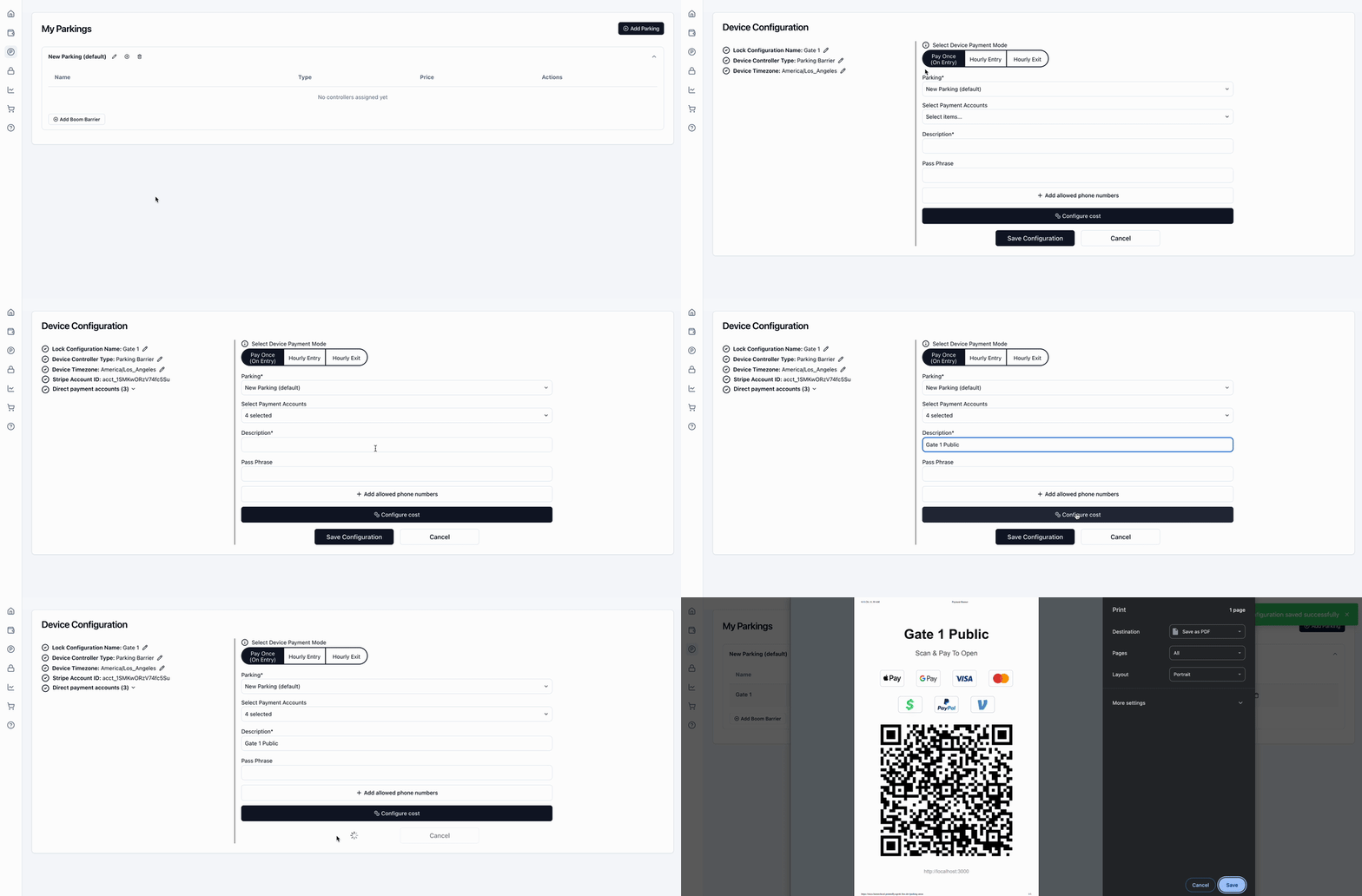
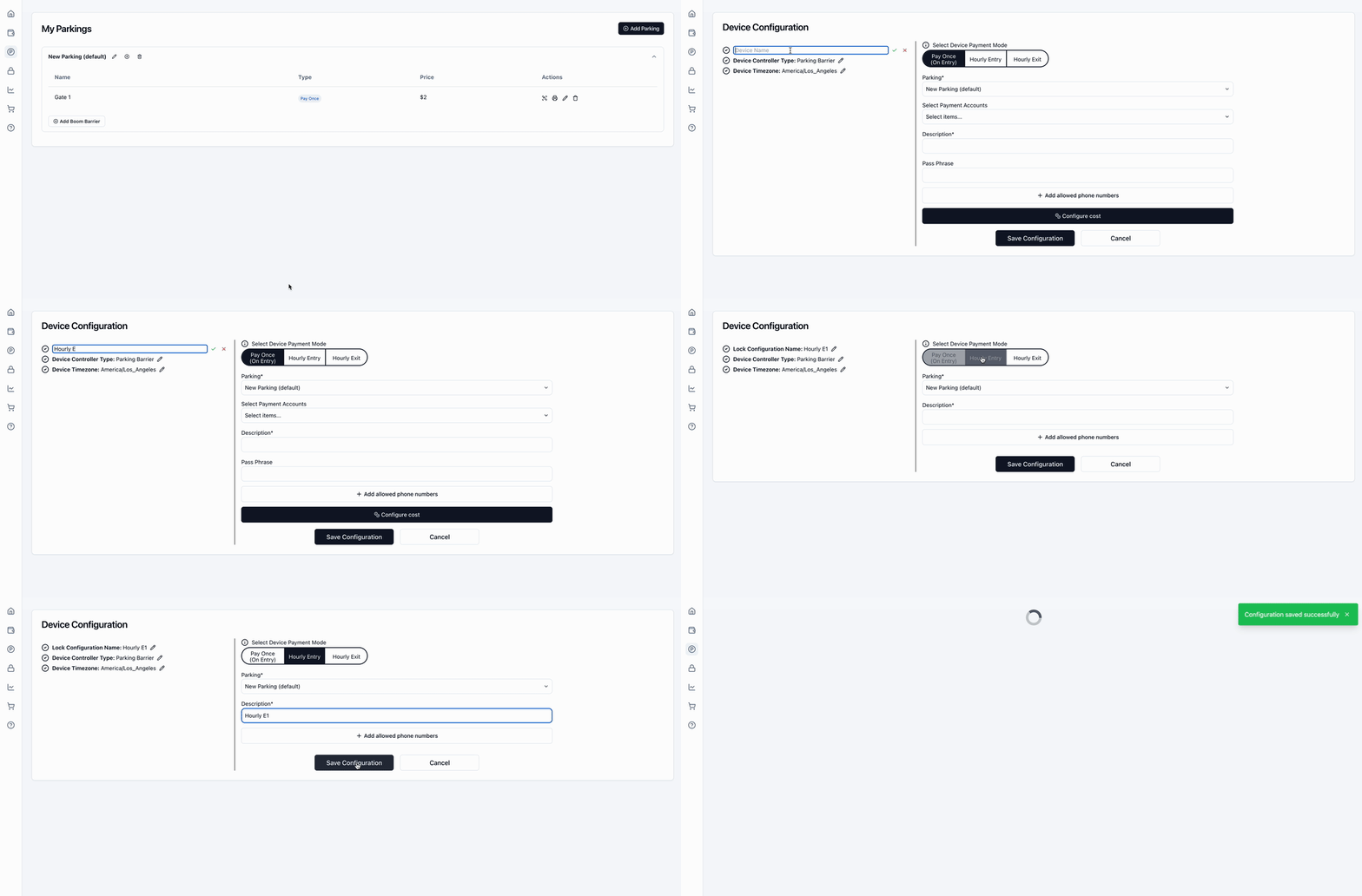
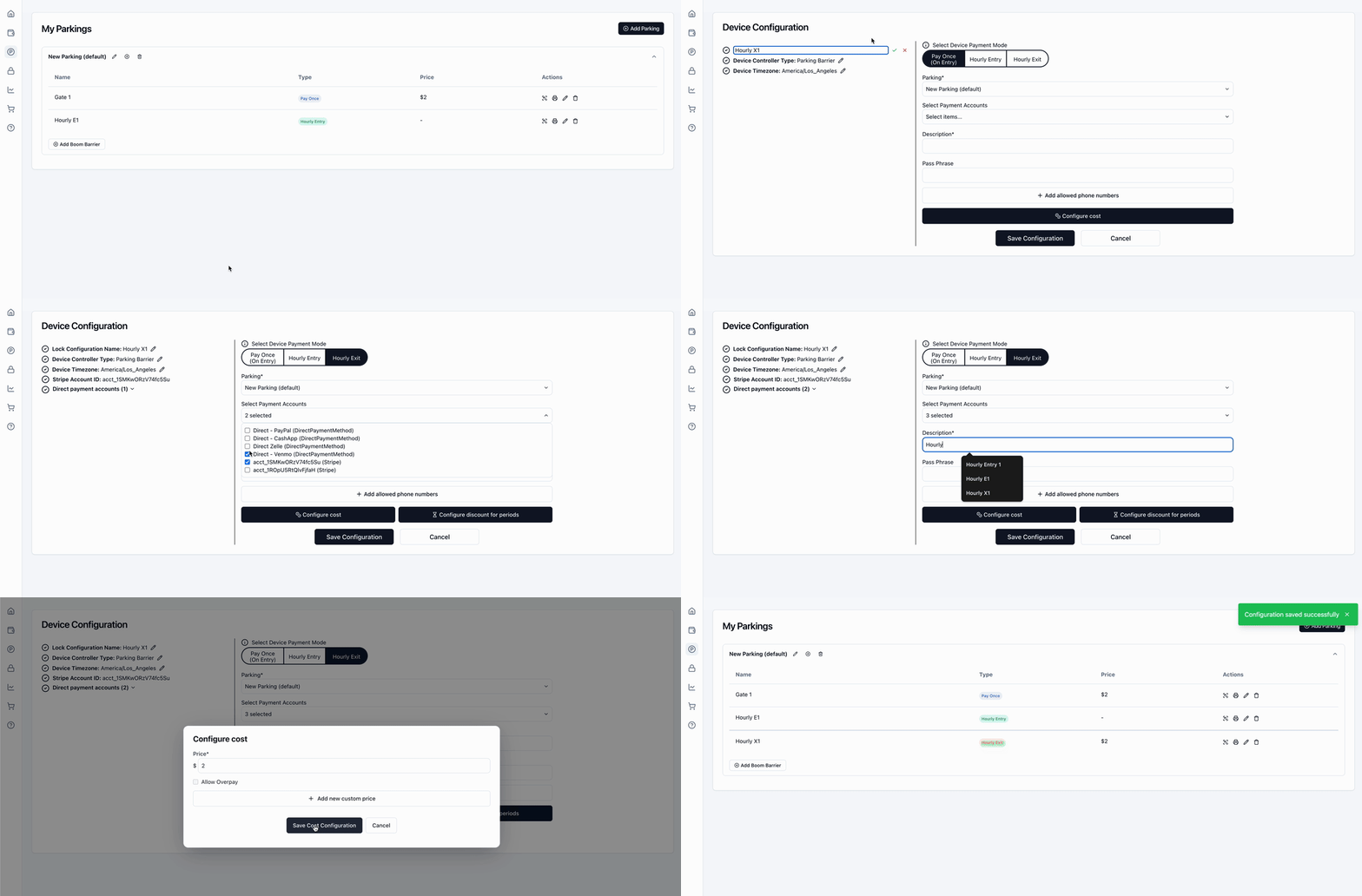
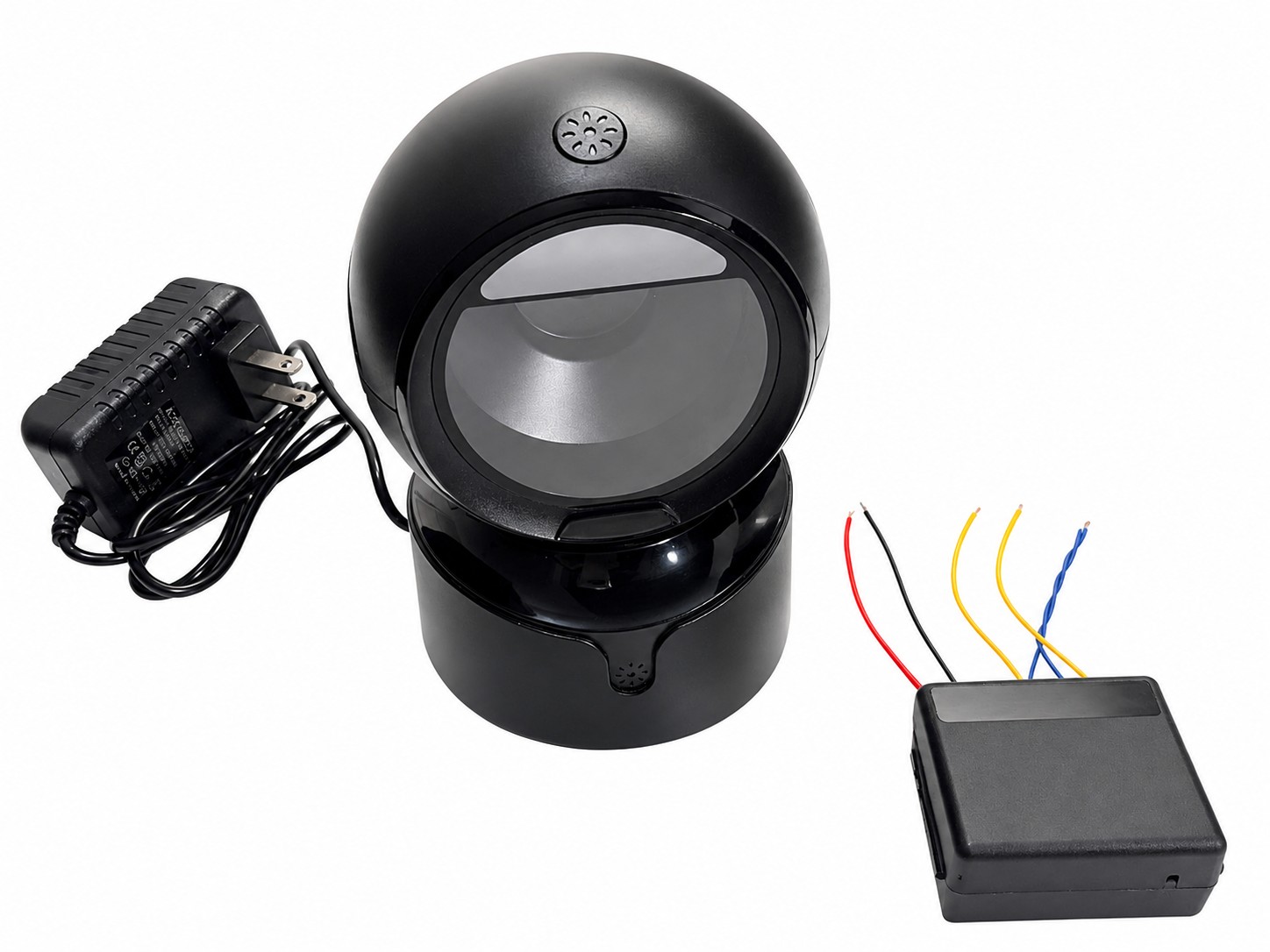
Image of a product, works with any boom barrier (ordered independently).
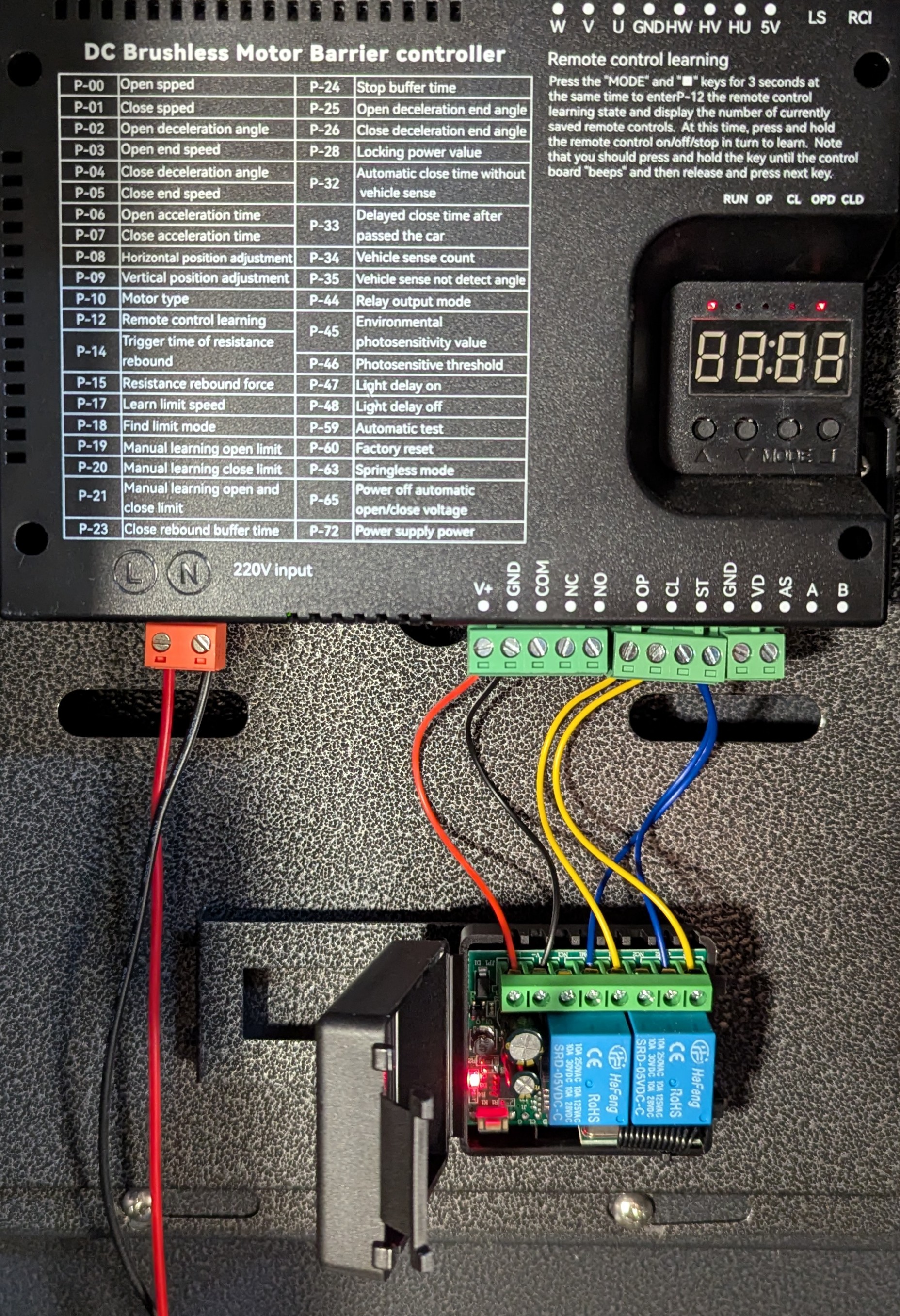
The diagram below illustrates the wiring connections between the relay and the boom barrier controller.
3.1 Demo Account
- Logout (bottom left)
- Click "Parkings" menu item
- A Sign-In page will open, click "Sign in with password" link
- Enter Username: test, Password: test
- Open a Pay-on-Entry device by clicking Edit button
- Scan the payment QR code, which will start the payment flow
3.2 Payment Accounts
Direct Payments
Connect your existing payment account in a few clicks, no need to set up a new one.
We support PayPal, Venmo, CashApp.
- Click "Payment Accounts" menu
- Click "Add Direct Payment Account" button
- Financial Email - email getting transaction receipts
- Personal QR Code - a code to receive payments
- Open PayPal app > Send/Request > QR Code (Top Right) > Your code > Download
Go back & Upload Image - Open Venmo app > Qr Code (Top Right) > Venmo Me > Share > Copy Link
Go back & Paste Link - Open Cash App > Qr Code (Top Right) > My Code > Share (Top Right) > Copy $Cashtag link
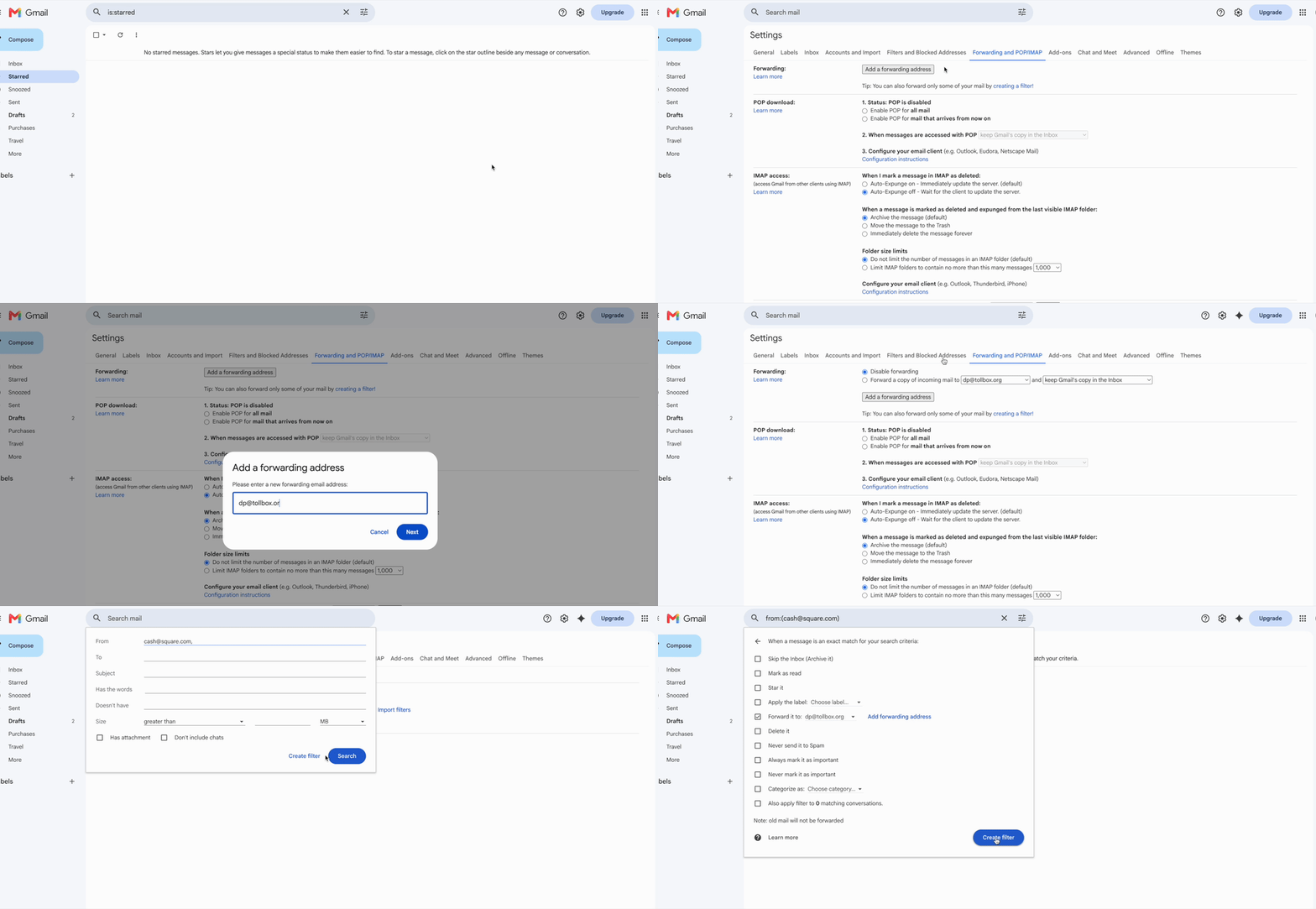
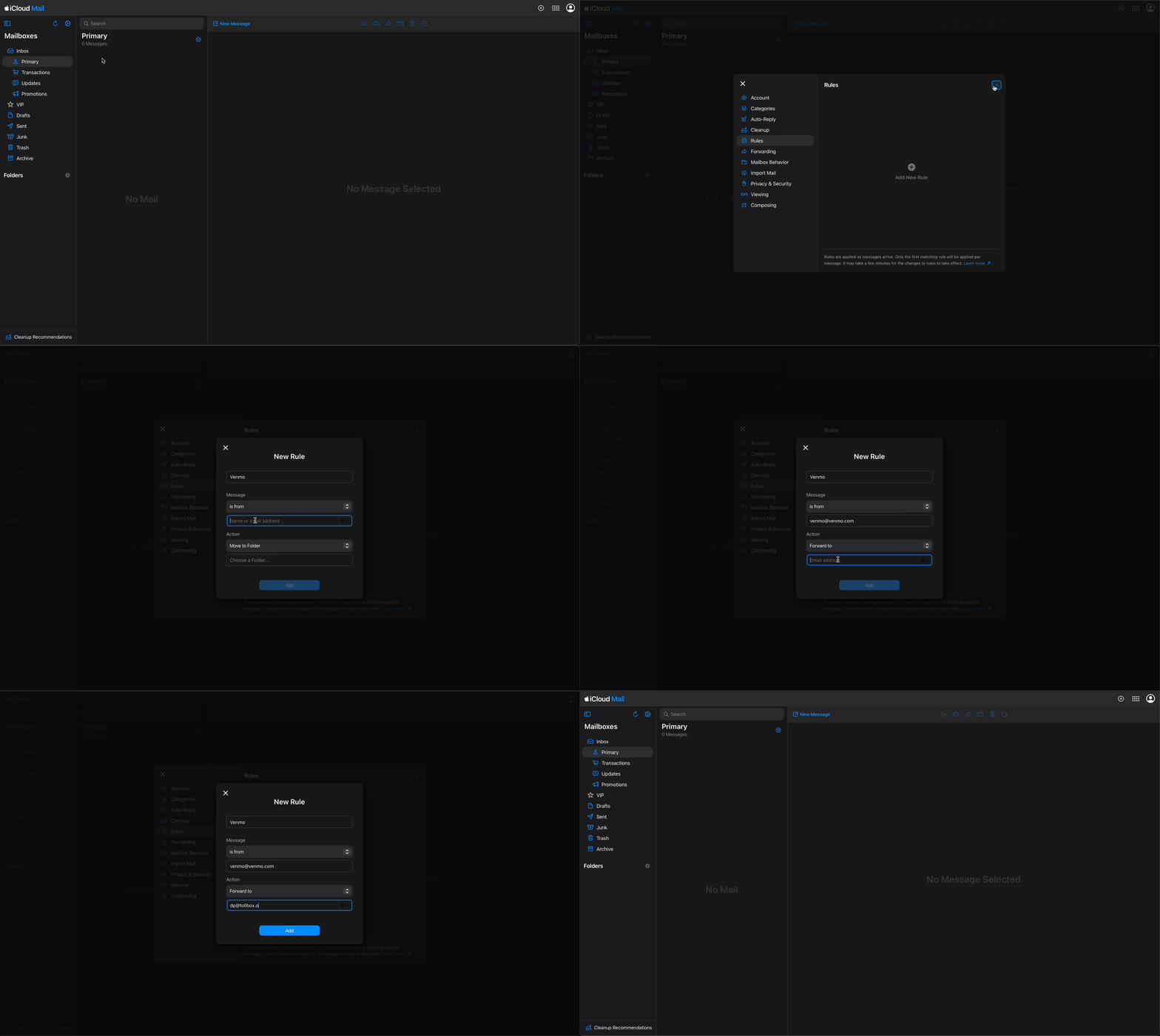
Go back & Paste Link - Configure mail forwarding for payment notifications
- Settings (Top Right) > See all settings > Forwarding and POP/IMAP > Add a Forwarding Address
- Add

- Filters and Blocked Addresses > Create a new filter
- From: [email protected], [email protected], [email protected] (add one at a time)
- Forward it to
- Gear Icon (Top Left) > Settings > Rules > Plus Icon (Top Right)
- From: [email protected], [email protected], [email protected] (add one at a time)
- Forward to
Gmail
Apple
Stripe
- Create Stripe account to receive ApplePay, GooglePay and Visa payments.
- Then click "Link Stripe Account".
3.3 Device Configuration
Pay on Entry
- Customer will be charged flat rate upon entry.
- Allowed phone numbers - restricts access to specific devices.
- A single pay-on-entry device may have multiple configurations and their own pricing rules (e.g. employees and public).
Hourly Entry
- Customer will use their phone to obtain a pass without payment.
- Grace period - allows free exit within a specified time after entry.
Hourly Exit
- Customer will be charged hourly rate upon exit.
- Phone number is used to identify the customer and time of entry.
- Allowed phone numbers - restricts access to specific devices.
- A single exit device may have multiple configurations and their own pricing rules (e.g. employees and public).
Cost
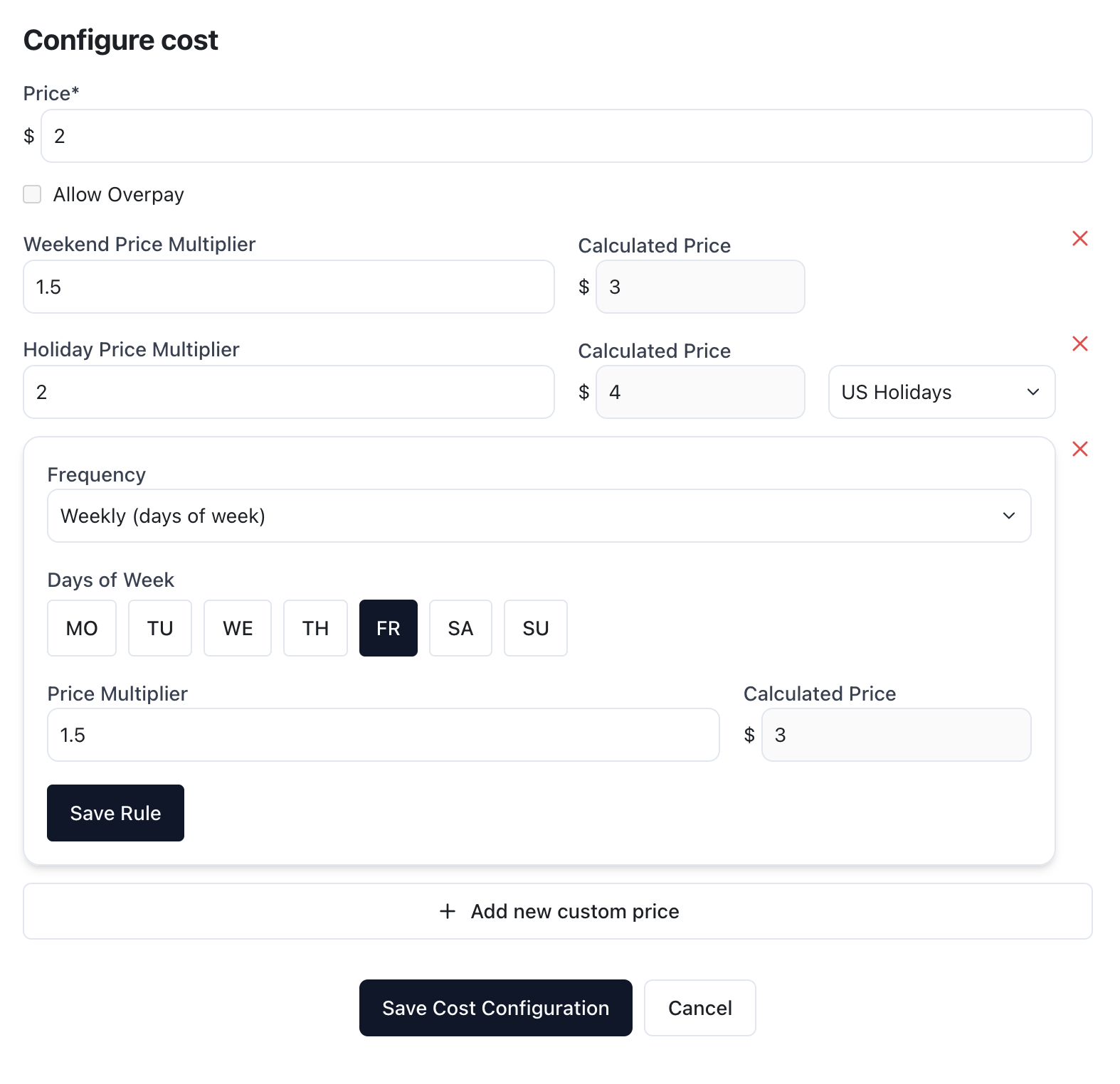
- In addition to basic price or price per hour, system supports Weekend, Holiday and Custom pricing rules. The below example sets:
- $2 on regular Weekdays
- $3 on Weekends including Friday
- $4 on US holidays
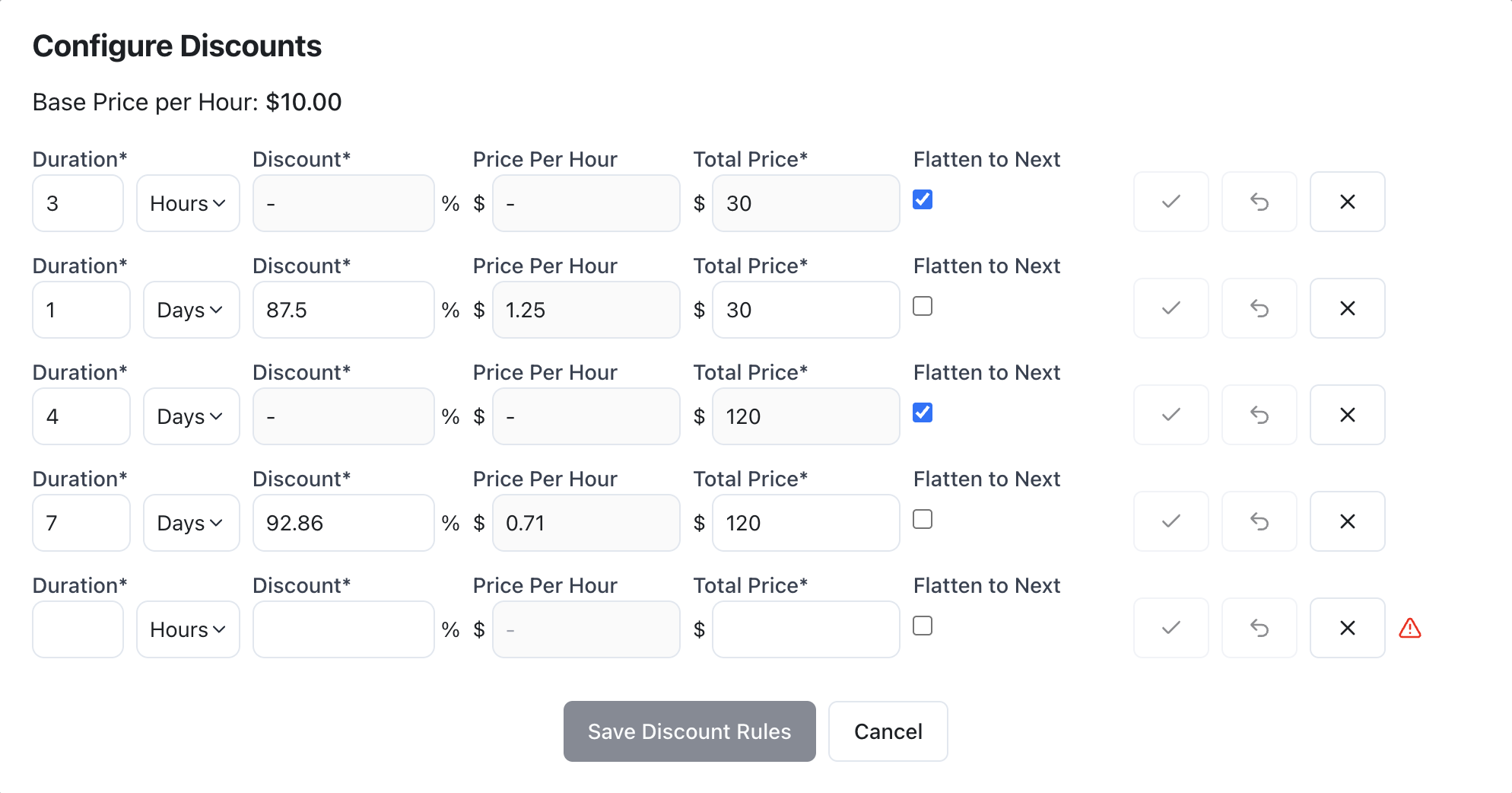
- Hourly Pricing allows for Discount Rules e.g. "flat rate after 3hrs". The below example sets:
- 0-3 hours - normal hourly rate
- 3-24 hours flat rate - $30
- 1-4 days - $30/day
- 4-7 days flat rate - $120
3.4 Automatic Parking Boom Barrier – Connection
Image of a product, works with any boom barrier (ordered independently).
- Can be powered 5V charger / power bank / solar.
- Relay module to be connected to the boom barrier.
- Can be used in parallel with other parking systems.
The diagram below illustrates the wiring connections between the relay and the boom barrier controller.
- Red/Black - Power (6-30V).
- Yellow - Open/Close (NO).
- Blue - Signal Ground.